
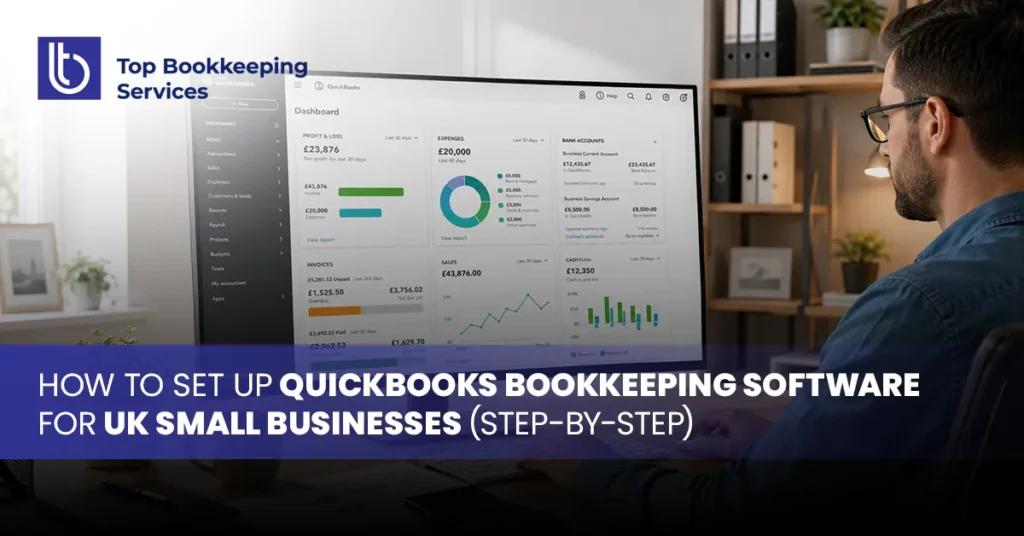
Managing finances is one of the biggest challenges small business owners face, and choosing the right quickbooks bookkeeping software uk solution can make or break how smoothly your business runs. Whether you’re a freelancer, a limited company, or a growing SME, getting your books set up correctly from day one saves you hours of stress later.
At Top Bookkeeping Services, we help business owners across the UK get started with QuickBooks the right way, and in this guide, we’ll walk you through exactly how to do it yourself, step by step.
What Is QuickBooks Bookkeeping Software?
QuickBooks is a cloud-based accounting platform designed to help business owners track income, expenses, invoices, and VAT in one place. As one of the most trusted online bookkeeping software UK platforms, it’s built to comply with HMRC’s Making Tax Digital (MTD) requirements, meaning UK businesses can submit VAT returns directly from the software.
Unlike spreadsheets or manual ledgers, QuickBooks automatically categorises transactions, reconciles bank feeds, and generates real-time financial reports. This makes it a popular choice among sole traders, limited companies, and growing SMEs who want accuracy without hiring a full-time accountant.
Why UK Small Businesses Are Switching to Online Bookkeeping Software
More UK business owners are moving away from paper records and spreadsheets because HMRC now requires digital record-keeping for VAT-registered businesses. Online bookkeeping software UK tools like QuickBooks offer several advantages:
- Automatic bank feed syncing: Connect your business bank account and automatically import transactions, saving time and reducing the need for manual data entry.
- Real-time profit and loss tracking: Monitor your income, expenses, and overall profitability in real time, helping you make faster and more informed business decisions.
- MTD-compliant VAT submissions: Keep your VAT records digitally and submit returns through software that supports HMRC’s Making Tax Digital (MTD) requirements.
- Cloud access from any device: Access your bookkeeping records securely from a laptop, tablet, or smartphone, whether you’re working from the office or remotely.
- Reduced risk of manual entry errors: Automation minimises repetitive data entry and helps reduce common mistakes that can affect financial records and tax calculations.
For businesses juggling multiple clients, suppliers, or employees, this level of automation isn’t just convenient; it’s often essential for staying compliant and organised.
Key Features That Matter for Small Businesses UK
Before setting anything up, it helps to understand what QuickBooks actually offers. For businesses using quickbooks bookkeeping software uk, the most useful features include:
- Invoicing tools – create, send, and track customer invoices
- Expense tracking – snap receipts and categorise spending automatically
- Bank reconciliation – match transactions with your business bank account
- VAT management – submit MTD-compliant VAT returns directly to HMRC
- Payroll add-ons – manage employee pay, tax, and pensions
- Reporting dashboards – view cash flow, profit, and tax liability at a glance
These features form the foundation of your setup process, so it’s worth knowing which ones apply to your business before you begin.
Step-by-Step: Setting Up QuickBooks From Scratch
Step 1: Choose the Right Plan
QuickBooks UK offers several pricing tiers (Simple Start, Essentials, Plus, and Advanced). Sole traders often start with Simple Start, while businesses with employees or inventory typically need Essentials or Plus.
Step 2: Create Your Account
Sign up using your business email, then enter your company name, industry type, and legal structure (sole trader, partnership, or limited company). This information affects how your chart of accounts and tax settings are configured.
Step 3: Set Up Your Company Details
Add your registered business address, VAT number (if applicable), company registration number, and financial year-end date. Accurate details here prevent compliance issues down the line.
Step 4: Customise Your Chart of Accounts
QuickBooks generates a default chart of accounts based on your industry, but you should review and adjust categories to reflect how your business actually earns and spends money.
Step 5: Connect Your Bank Account
Link your business bank account so transactions import automatically. This is one of the most valuable parts of any quickbooks bookkeeping software uk setup, as it eliminates manual data entry.
Step 6: Set Up Invoicing
Add your logo, payment terms, and preferred invoice template. You can also enable online payments so customers can pay directly through the invoice.
Step 7: Configure VAT Settings
If you’re VAT-registered, enable Making Tax Digital in the settings menu and connect your HMRC account. This allows you to submit VAT returns directly from QuickBooks.
Step 8: Invite Your Accountant or Bookkeeper
QuickBooks allows you to grant accountant-level access without extra cost, making it easy to collaborate with a professional for reviews or filings.
Connecting Bank Feeds and Automating Transactions
Once your bank is linked, quickbooks bookkeeping software uk will begin pulling in transactions daily. You can set up bank rules to automatically categorise recurring expenses like rent, subscriptions, or supplier payments. Reviewing these feeds weekly rather than letting them pile up keeps your books accurate and audit-ready.
Setting Up VAT and Making Tax Digital (MTD) Compliance
For VAT-registered UK businesses, MTD compliance isn’t optional. Within QuickBooks, navigate to the Taxes section, select VAT, and follow the prompts to link your Government Gateway account. Once connected, you can file returns directly, and QuickBooks will calculate your VAT liability automatically based on recorded transactions.
Customising Invoices, Payments, and Chart of Accounts
A well-set-up chart of accounts reflects your specific business model; a retailer’s categories will look different from a consultant’s. Take time to rename or merge default categories so your profit and loss reports actually make sense to you. Similarly, customising invoice templates with your branding and clear payment terms helps you get paid faster.
DIY Setup vs Using QuickBooks Bookkeeping Services
While quickbooks bookkeeping software uk is designed to be user-friendly, many business owners still find the initial setup time-consuming, especially around VAT configuration and chart of accounts customisation.
- Set up the software correctly from day one
- Ensure VAT and MTD compliance
- Reconcile accounts monthly
- Catch errors before they become costly
If you’d rather focus on running your business than learning software, outsourcing setup and ongoing bookkeeping is often the more time-efficient route.
Choosing the Right QuickBooks Plan (Pricing Tiers)
- Simple Start – ideal for sole traders and freelancers
- Essentials – suited to small businesses managing bills and multiple users
- Plus – best for businesses tracking inventory or project profitability
- Advanced – designed for larger SMEs needing custom reporting and workflows
Choosing correctly from the start avoids the hassle of migrating data later if you outgrow a lower tier.
Common Setup Mistakes UK Businesses Make
- Skipping the chart of accounts review and using generic defaults
- Not connecting bank feeds immediately, leading to backlogged entries
- Ignoring MTD VAT setup until a deadline is looming
- Mixing personal and business transactions in the same account
- Failing to reconcile accounts monthly, causing errors to compound
Avoiding these pitfalls early keeps your books clean and your tax filings stress-free.
Ongoing Bookkeeping Best Practices After Setup
Setup is just the beginning. To keep your books accurate long-term:
- Reconcile bank transactions weekly
- Review outstanding invoices regularly
- Back up financial reports monthly
- Schedule quarterly reviews with your accountant
- Keep receipts digitised and attached to transactions
Conclusion
Setting up QuickBooks bookkeeping software UK correctly from the start saves UK small business owners significant time, reduces compliance risks, and creates a solid foundation for accurate financial reporting. Whether you choose to configure it yourself using the steps above or prefer expert support, getting it right matters more than getting it done quickly. If you’d rather skip the learning curve altogether, Top Bookkeeping Services can set up, manage, and maintain your QuickBooks account so you can focus on growing your business with confidence.
Need Help Setting Up QuickBooks?
Get your quickbooks bookkeeping software uk account set up correctly from day one with professional support from Top Bookkeeping Services. From initial setup and bank feeds to VAT, MTD compliance, and ongoing bookkeeping, our UK bookkeeping experts can help keep your accounts accurate and organised.
Contact Top Bookkeeping Services today to get started.
Frequently Asked Questions
Is QuickBooks suitable for very small businesses in the UK?
Yes, QuickBooks offers scalable plans starting with Simple Start, which is designed specifically for sole traders and freelancers.
Do I need an accountant to use QuickBooks?
No, but many businesses choose to work with a bookkeeper for setup, VAT compliance, and ongoing accuracy checks.
Can QuickBooks handle Making Tax Digital VAT submissions?
Yes, QuickBooks is HMRC-recognised software for MTD VAT filing.
Can QuickBooks be used for Making Tax Digital (MTD) in the UK?
Yes. QuickBooks supports MTD for VAT, allowing VAT-registered businesses to keep digital records and submit VAT returns directly to HMRC.
How often should I update my QuickBooks bookkeeping?
Ideally, you should review and reconcile your transactions at least weekly. Regular bookkeeping helps keep your financial records accurate, identify errors early, and avoid a last-minute rush before tax or VAT deadlines.